

Microsoft 365 delivers always-up-to-date Office apps, 1 TB of OneDrive cloud storage per user, integrated collaboration through Microsoft Teams, AI-powered tools via Microsoft 365 Copilot, and enterprise-grade security controls including Microsoft Defender, Microsoft Entra, and Microsoft Intune, all under a single subscription. For small and mid-sized businesses, that combination replaces a patchwork of separate tools with one managed, scalable platform.
Here are the headline benefits at a glance:
- Always-current apps: Word, Excel, PowerPoint, and Outlook update automatically, so you are never running a version behind.
- 1 TB cloud storage per user: OneDrive syncs files across desktop, web, and mobile with offline access included.
- Integrated collaboration: Microsoft Teams handles chat, meetings, channels, and file sharing in one place.
- Real-time co-authoring: Multiple users can edit the same document simultaneously in Word, Excel, or PowerPoint.
- AI assistance: Microsoft 365 Copilot drafts content, summarizes meetings, and analyzes data across apps.
- Built-in security: Microsoft Defender for Office 365 protects email and files; Microsoft Entra manages identity and access.
- Device management: Microsoft Intune enforces policies across laptops, phones, and tablets without a dedicated IT team.
- Flexible licensing: Plans scale from individual users to 300-seat business subscriptions, with enterprise tiers beyond that.
Key Takeaways
Microsoft 365 delivers the strongest return for small businesses when productivity, security, and device management are configured together from the start rather than added incrementally.
| Point | Details |
|---|---|
| Integrated platform value | Combining Teams, OneDrive, Defender, and Intune in one subscription reduces tool sprawl and admin overhead. |
| 1 TB storage per user | Each licensed business user gets 1 TB of OneDrive storage with sync across desktop, web, and mobile. |
| Security defaults matter | Enabling MFA and preset Defender policies raises your security posture faster than any other single action. |
| Plan selection is critical | Business Premium is the right fit for most SMBs needing device management and advanced threat protection. |
| Symmnet managed deployment | Symmnet handles Microsoft 365 tenant setup, security hardening, migration, and 24/7 monitoring for small businesses. |
Table of Contents
- What are the core benefits of Office 365 for daily work?
- How does Microsoft 365 protect your business from security threats?
- How do Teams, SharePoint, and OneDrive support hybrid work?
- What can Microsoft 365 Copilot and Power Automate do for your team?
- Which Microsoft 365 plan is right for your business?
- What are the real trade-offs of using Microsoft 365?
- How can small businesses get the most out of Microsoft 365?
- Why Symmnet recommends Microsoft 365 for small U.S. businesses
- Symmnet can handle your Microsoft 365 deployment
- Sources
What are the core benefits of Office 365 for daily work?
The most immediate payoff is that your apps are always current. Microsoft pushes feature and security updates to Microsoft 365 subscribers automatically, which means you are not managing a software lifecycle or paying for upgrade licenses every few years. Word, Excel, PowerPoint, and Outlook on the desktop behave like the same tools you already know, but with continuous improvements baked in.
Storage and file access are equally straightforward. Microsoft 365 business plans include 1 TB of OneDrive cloud storage per licensed user, with sync across desktop, web, and mobile and offline access that reconnects automatically. That means a field technician can pull up a spec sheet without a Wi-Fi connection, and the updated version appears on every other device once they are back online. Version history lets you recover earlier drafts without hunting through email chains for attachments.
Collaboration changes the most visibly. Microsoft Teams consolidates chat, video meetings, file sharing, and project channels into one interface, cutting the back-and-forth that typically fragments across email, text, and separate video tools. SharePoint team sites give departments a structured home for documents, wikis, and internal portals. Real-time co-authoring in Office apps means two people can edit a proposal at the same time without creating conflicting copies.
For IT decision-makers, the administrative side matters just as much. A single admin center handles user provisioning, license assignment, and policy enforcement. Adding a new employee takes minutes: assign a license, configure their mailbox, and they inherit the security policies already in place. Removing a user is equally clean, with options to preserve their mailbox data and revoke access immediately. Microsoft Entra (formerly Azure Active Directory) sits underneath all of this, managing identity across every app and device in the tenant.
Pro Tip: Enable OneDrive Known Folder Move during your initial rollout. It automatically redirects each user's Desktop, Documents, and Pictures folders to OneDrive, protecting data that would otherwise live only on a local drive and reducing your exposure to ransomware or hardware failure.
Microsoft 365 for business positions this combination of productivity apps, Teams, OneDrive, and AI features as a single integrated platform rather than a bundle of separate products, and for most small businesses, that integration is where the real value shows up.
How does Microsoft 365 protect your business from security threats?
Security is where Microsoft 365 separates itself most clearly from a standalone Office license. The platform layers identity protection, email defense, endpoint management, and data governance into a single tenant, and the controls available depend on which plan you choose.
Account and identity protection starts with Microsoft Entra. Security defaults, which Microsoft enables automatically for new tenants, enforce multi-factor authentication (MFA) for all users and block legacy authentication protocols that attackers commonly exploit. Business Premium tenants can go further with Conditional Access policies that restrict sign-ins based on device compliance, location, or risk score.
Email and collaboration protection comes from Microsoft Defender for Office 365. Safe Attachments detonates suspicious files in a sandbox before they reach a user's inbox. Safe Links rewrites URLs at click time and blocks known malicious destinations. Anti-phishing policies detect impersonation attempts targeting your domain. These controls are not add-ons you configure separately; they are part of the platform and apply to Exchange Online, SharePoint, OneDrive, and Teams simultaneously.
Device and endpoint security is handled by Microsoft Intune. Business Premium includes Intune Plan 1, which lets administrators enroll Windows, macOS, iOS, and Android devices, push configuration profiles, enforce encryption, and wipe a lost or stolen device remotely. Defender for Business, also included in Business Premium, adds endpoint detection and response (EDR) capabilities that go well beyond traditional antivirus.

Data governance and compliance run through Microsoft Purview. Data Loss Prevention (DLP) policies can detect and block sensitive information, such as Social Security numbers or credit card data, from leaving the organization via email, SharePoint, or OneDrive. eDiscovery tools let administrators search and preserve content across the tenant for legal or audit purposes.
The following controls represent the highest-impact security actions for most small businesses:
- Enable MFA for all users through security defaults or Conditional Access.
- Apply the Standard preset security policy in Defender for Office 365 to activate Safe Attachments and Safe Links.
- Enroll devices in Intune and enforce BitLocker encryption on Windows endpoints.
- Configure DLP policies to flag or block outbound sharing of sensitive data.
- Review and restrict legacy authentication protocols in Microsoft Entra.
Microsoft's security and compliance licensing guidance consolidates service descriptions for Defender, Entra, Intune, Priva, and Purview in one place, making it the authoritative reference for understanding which controls are available at each licensing tier.
Microsoft 365 Business Premium is specifically designed to give small and mid-sized businesses enterprise-grade protections without requiring a full internal security team. The Microsoft 365 for business security overview walks through account, email, and device security tiers across Business Basic, Standard, and Premium, and it is the right starting point for any administrator configuring a new tenant.
For manufacturing businesses with stricter data protection requirements, pairing Microsoft 365's DLP and retention controls with a manufacturing data protection workflow helps map platform capabilities to operational compliance needs.
How do Teams, SharePoint, and OneDrive support hybrid work?
Hybrid work puts real pressure on collaboration tools. People need to join meetings from a home office, co-edit documents with colleagues in a different time zone, and access files from a phone in a client's lobby. Microsoft 365 handles all three scenarios without requiring separate subscriptions or third-party integrations.
Microsoft Teams is the hub. A typical workday might start with a Teams channel message about a project update, move into a scheduled video meeting where participants share screens and annotate a PowerPoint together, and end with a recorded summary that gets transcribed automatically and posted to the channel. That transcript is searchable, which means someone who missed the meeting can find the key decisions in seconds rather than watching a full recording.
SharePoint team sites give each department or project a structured home. A manufacturing team might use a SharePoint site to host their standard operating procedures, track document approvals, and publish internal announcements, all without IT involvement after the initial setup. Document libraries in SharePoint support versioning, check-in/check-out, and granular permission controls, which matters when you need to share a document with an external vendor without exposing the rest of the site.
Real-time co-authoring works across Word, Excel, and PowerPoint in both the browser and desktop apps. Two people editing the same proposal see each other's cursors and changes as they happen. When a conflict does occur, versioning captures both edits so nothing is lost. Combined with shared calendars in Outlook and Exchange Online, this cuts the coordination overhead that slows most small teams down.
Offline access rounds out the picture. OneDrive syncs selected folders locally, so a consultant on a flight can finish a report in Word and have it upload automatically when the plane lands. Outlook supports cached Exchange mode, keeping a local copy of the mailbox available when connectivity drops. For remote and hybrid teams, that reliability removes a common friction point.
What can Microsoft 365 Copilot and Power Automate do for your team?
AI features in Microsoft 365 are not a single product; they are a layer that runs across the apps you already use. Microsoft 365 Copilot, available as an add-on to qualifying business plans, brings large-language-model capabilities directly into Word, Excel, PowerPoint, Teams, and Outlook.
In Word, Copilot drafts a first version of a document from a prompt or rewrites a section in a different tone. In Excel, it analyzes a dataset and surfaces trends or anomalies in plain language, which is useful for a business owner who needs to understand a sales report without building pivot tables manually. In PowerPoint, it generates a slide deck from a Word document or a brief description. In Teams meetings, it summarizes the conversation, lists action items, and answers questions about what was discussed, even after the meeting ends.
Microsoft Designer handles quick creative assets, generating branded graphics, social images, or presentation visuals from a text description. Clipchamp, included in some plans, provides browser-based video editing for training clips or product demos without requiring external software.
Power Automate connects Microsoft 365 to hundreds of other services and automates repetitive workflows. Common examples include routing a new SharePoint form submission to an approval chain in Teams, sending a notification when a file is added to a specific OneDrive folder, or syncing contact data between Outlook and a CRM. These automations run without code and can be built by a business owner, not just a developer.
Pro Tip: Before deploying Copilot broadly, review your DLP policies in Microsoft Purview. Copilot respects existing permissions, but confirming that sensitive files are not over-shared in SharePoint or OneDrive prevents the AI from surfacing data that users should not see. A quick permissions audit takes less than an hour and avoids a larger cleanup later.
Which Microsoft 365 plan is right for your business?
Choosing the right plan comes down to three questions: how many users you have, whether you need desktop apps, and how much security and device management you require. The plan families below cover the most common scenarios for individuals and small businesses.
Personal and Family subscriptions are consumer-oriented. They include the full desktop apps and 1 TB of OneDrive per user, but they lack the admin center, Teams for business, and the security controls that organizations need.
Business Basic suits teams that work primarily in a browser and need Teams, Exchange Online, and SharePoint without paying for desktop installs. Business Standard adds the full desktop Office suite and is the right choice for most small businesses that want familiar apps alongside collaboration tools.
Business Premium is the plan Symmnet recommends for most clients in manufacturing, aerospace, and professional services. It adds Intune for device management, Defender for Business for endpoint protection, and Microsoft Entra Plan 1 for Conditional Access, giving a small business the security posture of a much larger organization without a dedicated security team.
Before choosing, answer these questions:
- Do your users need full desktop apps, or is browser-based access sufficient?
- Do you need to manage and secure company-owned or personal devices?
- Are you subject to compliance requirements (HIPAA, CMMC, FDA 21 CFR Part 11) that require DLP, audit logs, or eDiscovery?
- How many users will you license, and do you expect that number to grow significantly in the next 12 months?
- Do you need Microsoft 365 Copilot, which requires an additional per-user add-on license?
For businesses approaching 300 users or with complex compliance needs, Microsoft 365 E3 and E5 enterprise plans add advanced eDiscovery, Defender for Endpoint Plan 2, and Purview compliance features that go beyond what Business Premium provides.
What are the real trade-offs of using Microsoft 365?
Microsoft 365 is the right choice for most small businesses, but it is not without friction. Understanding the trade-offs upfront prevents surprises after you have committed to a rollout.
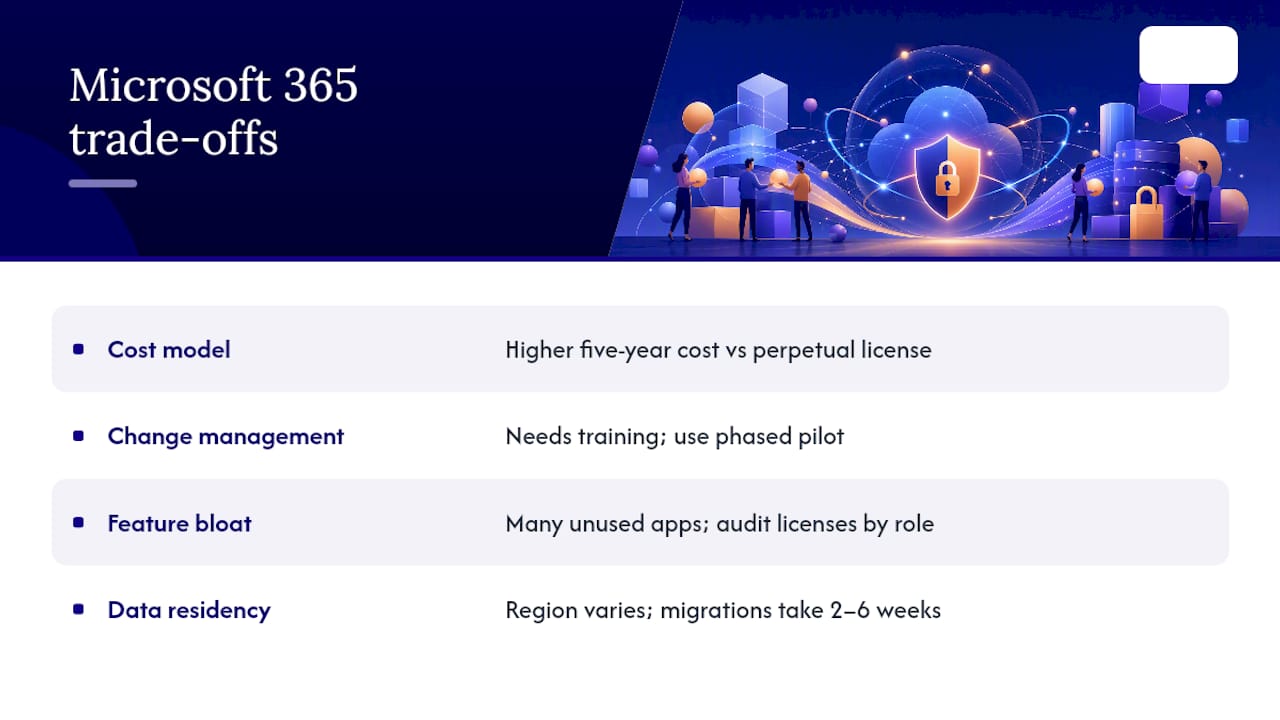
Subscription cost vs. perpetual license. A Business Standard subscription costs more over five years than a one-time Office 2021 license for the same number of users. The calculation shifts when you factor in the included Exchange Online mailboxes, Teams, OneDrive storage, and security tools that you would otherwise buy separately. Still, for a very small team with minimal collaboration needs, a perpetual license may be cheaper in the short term.
Change management. Moving from a legacy file server to SharePoint and OneDrive requires more than a technical migration. Users need to understand new folder structures, sharing permissions, and co-authoring behavior. Without training, adoption stalls and people revert to emailing attachments. A phased rollout, starting with a pilot group, reduces resistance and surfaces configuration issues before they affect everyone.
Feature bloat and licensing mismatch. Microsoft 365 includes dozens of apps most small teams will never use. Loop, Viva, Whiteboard, and Sway are all part of the subscription, but they add cognitive overhead for users who just need Word and email. Over-licensing is equally common: assigning Business Premium to every user when only the IT admin needs Intune and Defender for Business inflates costs unnecessarily. Audit your user roles and assign the minimum plan that meets each person's actual needs.
Data residency and migration complexity. Microsoft stores tenant data in regional data centers, and the specific region depends on where the tenant was created and which plan you use. For businesses with strict data residency requirements, verifying the assigned region before migration is worth the extra step. Migrating from Google Workspace, a legacy Exchange server, or an older Office version typically takes two to six weeks depending on mailbox size, file volume, and the complexity of existing permissions.
Mitigation is straightforward in most cases: plan the tenant configuration before migrating data, assign licenses by role rather than uniformly, and budget time for user training alongside the technical work.
How can small businesses get the most out of Microsoft 365?
The steps below reflect what Symmnet applies when onboarding a new client, and they work equally well for an internal IT lead managing the rollout independently.
- Plan tenant setup before you start. Decide on your domain, naming conventions for users and groups, and your SharePoint site structure before creating accounts. Changing these after migration is time-consuming.
- Configure identity and MFA first. Enable security defaults in Microsoft Entra or, for Business Premium tenants, configure Conditional Access policies. MFA is the single highest-impact security control you can enable.
- Apply preset security policies in Defender for Office 365. The Standard preset activates Safe Attachments, Safe Links, and anti-phishing policies across the tenant in minutes. Strict preset adds more aggressive filtering for high-risk users.
- Set up Intune or Basic MDM. Enroll company-owned devices and, where appropriate, personal devices used for work. Push encryption and screen-lock policies as a baseline.
- Migrate email first, then files. Mailbox migration is typically faster and less disruptive than file migration. Getting users onto Exchange Online first lets them experience the collaboration benefits while the file migration runs in parallel.
- Enable OneDrive Known Folder Move. Redirect Desktop, Documents, and Pictures to OneDrive automatically. This protects data that would otherwise be lost if a device fails.
- Assign roles and review permissions. Limit Global Admin access to two or three accounts. Use least-privilege principles for SharePoint and Teams permissions from day one.
- Train users on co-authoring and Teams. A 30-minute walkthrough of Teams channels, co-authoring in Word, and OneDrive sharing covers 80% of what most users need to change their daily habits.
- Establish a backup strategy. Microsoft 365 includes recycle bins and version history, but it is not a backup solution. A third-party backup tool or a tested backup and recovery plan protects against accidental deletion, ransomware, and retention policy gaps.
- Schedule ongoing admin hygiene. Review inactive accounts monthly, audit license assignments quarterly, and check the Microsoft Secure Score in the admin center to identify configuration gaps.
For businesses that want a faster, lower-risk path, Symmnet's managed Microsoft 365 services handle tenant configuration, security hardening, migration, and ongoing monitoring so your team can focus on operations rather than IT setup.
Why Symmnet recommends Microsoft 365 for small U.S. businesses
The case for Microsoft 365 is not really about the apps. Word and Excel have been good enough for most businesses for two decades. The real argument is the security and management layer that comes with a properly configured Business Premium tenant.
What Symmnet sees repeatedly with new clients is a gap between what Microsoft 365 can do and what is actually turned on. A business might be paying for Business Premium and still have MFA disabled, no DLP policies in place, and devices that have never been enrolled in Intune. The subscription is there; the protection is not. That gap is where breaches happen.
The businesses that get the most from Microsoft 365 treat the initial configuration as seriously as the migration itself. They assign licenses by role, apply preset security policies on day one, and train users on co-authoring and Teams before the old file server goes offline. The result is not just a productivity upgrade; it is a measurable reduction in the attack surface and a compliance posture that holds up under audit.
For small manufacturers and professional services firms in particular, the combination of Intune device management, Defender for Business endpoint protection, and Purview DLP covers the core requirements of frameworks like CMMC and HIPAA without requiring a separate security stack, complemented by effective ambient dust control for manufacturing plants. That is a significant cost and complexity reduction compared with assembling those controls from multiple vendors.
Symmnet can handle your Microsoft 365 deployment
Fixed-price managed IT from Symmnet means your Microsoft 365 tenant gets configured correctly the first time, with security hardening, user migration, and 24/7 monitoring included from day one, not added later when something goes wrong.
Symmnet's managed IT services cover the full Microsoft 365 deployment lifecycle: tenant setup, identity configuration, Intune enrollment, Defender policy activation, mailbox and file migration, and ongoing admin support. For small businesses in manufacturing, aerospace, and professional services, that means a production-ready, compliant Microsoft 365 environment without pulling your team away from operations. Fixed monthly pricing replaces unpredictable project costs, and U.S.-based support is available around the clock. Schedule a free assessment to identify your current security gaps and get a clear migration plan tailored to your business.
Sources
The sources below are the primary Microsoft documentation used to build this article. They are the right starting points for verifying feature availability, plan differences, and security configurations.
- Microsoft 365 security and compliance licensing guidance - Microsoft Learn
- Microsoft 365 for business - Microsoft
For admin and IT setup, Microsoft Learn's documentation library is the most reliable source for step-by-step guidance on tenant configuration, Intune enrollment, and Defender policy setup.