

Microsoft Intune is a cloud-native platform that manages devices, apps, and access policies across Windows, macOS, iOS, and Android without on-premises servers, built around core Zero Trust principles to enforce identity and device signals for security. It pairs mobile device management (MDM) for company-owned hardware with app protection (MAM) for personal devices, then enforces both through Microsoft Entra Conditional Access. Small businesses in manufacturing, professional services, and other regulated industries use it to build Zero Trust device posture without hiring a dedicated systems administrator.
TL;DR:
- Licensing gaps, such as missing Entra ID P1 or P2 tiers, are a common obstacle during initial Intune deployment, especially for Conditional Access.
- Proper role-based access control and role-specific communication are critical for successful device enrollment and maintaining compliance without overwhelming helpdesk support.
- Starting with a small pilot group and implementing report-only mode for Conditional Access minimizes risks of locking out staff during policy enforcement.
- Enrolling different device types requires tailored methods; for instance, Windows devices can use Autopilot, while Apple devices benefit from Apple Business Manager, with ownership accurately labeled at enrollment.
- Critical configuration practices include maintaining accurate inventory, enabling full-disk encryption, onboarding Defender security baselines, and deploying app protection policies aligned with device ownership and user needs.
Table of Contents
- What Is Intune Device Management, Exactly?
- Prerequisites and Licensing Before You Enroll a Single Device
- Enrollment Methods: Picking the Right Path for Each Platform
- Turning Compliance Policies Into Enforced Conditional Access
- Configuration Profiles and the Endpoint Security Baseline
- Deploying Apps and Protecting Data With MAM
- Managing the Device Lifecycle From Enrollment to Retirement
- A phased pilot plan over several months is recommended for small IT teams
- Symmnet's Take on Managed Intune Deployments
- Where Intune's Automation Tools Actually Save Time
- Managing Windows, macOS, iOS, and Android Without Losing Your Mind
- Beyond Defender: Connecting Intune to the Rest of Your Stack
- Getting Employees to Actually Cooperate With Enrollment
- What Actually Matters Once You Cut Through the Noise
- Get Help Setting Up Intune Without the Trial and Error
- Sources
What Is Intune Device Management, Exactly?
Intune device management sits inside Microsoft's broader endpoint management stack, and understanding two distinctions early saves weeks of misconfiguration later: MDM versus MAM, and device management versus app management.
MDM (mobile device management) gives IT full control over a device: enrollment, configuration profiles, remote wipe, compliance checks. It's the right tool for company-owned laptops and phones where the business owns the hardware and the risk. MAM (mobile application management) protects corporate data inside specific apps, like Outlook or Teams, without touching the rest of a personal phone. No enrollment required. That distinction matters most on BYOD, where employees will not tolerate IT controlling their personal photos or texting apps.
Microsoft Intune manages devices, apps, and access across Windows, macOS, iOS, Android, and some Linux endpoints from a single cloud console, and it ties into Zero Trust identity signals from Microsoft Entra rather than relying on a domain controller.
A few concepts shape every policy decision you'll make:
- Device ownership category (corporate vs. personal) determines which policies apply and how aggressively IT can act on the device.
- User affinity (whether a device is tied to one primary user or shared) changes how profiles and apps deploy.
- Intune Plan 1 covers core MDM/MAM; the Intune Suite adds advanced endpoint analytics, remote help, and enterprise app management for organizations that outgrow the basics.
Most small businesses start with Plan 1 and only add Suite features once a specific gap, like advanced threat analytics, actually shows up in the data.
Prerequisites and Licensing Before You Enroll a Single Device
Intune enrollment fails more often from missing prerequisites than from bad policy design. Before touching the admin center, confirm licensing, certificates, and network access.
Most Microsoft 365 Business Premium and Enterprise Mobility + Security bundles include Intune licensing. Conditional Access, though, depends on Microsoft Entra ID P1 or P2, which some smaller bundles don't include by default. Microsoft's own deployment guidance flags this licensing gap as one of the most common rollout blockers, since admins often discover the missing tier only after building policies that silently fail to enforce.
Platform-specific tokens add another layer:
- Apple devices need an MDM push certificate and, for zero-touch deployment, an Apple Business Manager account.
- Android corporate devices require a managed Google Play connection tied to your tenant.
- Certificate-based Wi-Fi or VPN profiles need a PKI setup using SCEP or PKCS connectors, plus firewall exceptions for Intune's cloud endpoints.
- Admin roles should follow role-based access control (RBAC) from day one. Assign the built-in Intune Administrator role only to people who need it, and use scope tags to limit helpdesk staff to specific device groups.
Skipping RBAC is a common audit finding during compliance reviews of regulated small manufacturers, since a wide-open admin role becomes a liability the moment a device gets wiped by mistake.
Enrollment Methods: Picking the Right Path for Each Platform
Enrollment isn't one process, it's four or five, depending on the platform mix in your organization. Intune supports Windows Autopilot, Apple zero-touch enrollment, and multiple Android modes, each suited to a different ownership scenario.
- Windows Autopilot with Azure AD Join. New Windows laptops register their hardware hash with Autopilot, ship straight to the employee, and self-configure on first boot. No imaging, no IT technician unboxing hardware.
- Apple Business Manager zero-touch. Devices purchased through ABM auto-enroll during setup. For BYOD iPhones, the Company Portal app handles MAM-only enrollment instead.
- Android work profile (BYOD) separates a work container from personal apps on the same phone. Corporate-owned fully managed mode gives IT complete control for dedicated business devices, and both rely on a managed Google Play connection.
- Bulk enrollment via provisioning packages for kiosk devices or shared hardware, common in manufacturing floors and shared front-desk workstations.
Label ownership correctly at enrollment. It's easy to fix later but easy to forget, and a mislabeled personal phone can end up subject to a full wipe policy meant for corporate hardware. Common troubleshooting issues include expired Apple push certificates (they need annual renewal) and devices stuck in "pending" because a required app installation is timing out.
Turning Compliance Policies Into Enforced Conditional Access
Compliance policies are the health check; Conditional Access is the gate. Get the order wrong and you risk locking out your entire staff on a Monday morning.
Compliance policies measure things like OS version, disk encryption status, passcode strength, jailbreak/root detection, and threat level reported by Microsoft Defender. A typical Windows policy might require BitLocker enabled, a minimum OS build, and a passcode of at least eight characters. Once a device reports as compliant or noncompliant, that status becomes a signal Conditional Access can act on.
Microsoft recommends building compliance policies first, then rolling Conditional Access out in report-only mode before switching to full enforcement. Report-only mode logs what would have happened without actually blocking anyone, which is how you catch a misconfigured policy before it locks out your finance team during payroll week.
A practical pilot sequence looks like this:
- Build compliance policies for one platform first, usually Windows since it's the most standardized fleet.
- Assign to a small pilot group, not "All Users."
- Run the matching Conditional Access policy in report-only for at least one to two weeks.
- Review sign-in logs for unexpected denials before switching to enforced mode.
- Build a remediation workflow so noncompliant users get a clear message and a fix path, not just a locked screen.
Pro Tip: Set up notifications for devices that remain noncompliant for an extended period. Catching drift early is far easier than untangling a backlog of 40 locked-out laptops during quarter-end.
Configuration Profiles and the Endpoint Security Baseline
Intune gives you two main tools for shaping device settings: the settings catalog and configuration templates. The settings catalog exposes nearly every configurable setting in a searchable list, useful for granular controls like Edge browser policies, OneDrive known-folder redirection, or RDP restrictions. Templates bundle common settings together for faster deployment when you don't need to customize every option.
Intune applies security baselines and endpoint settings, including firewall rules and BitLocker encryption, directly from the cloud, which removes the need for Group Policy objects tied to an on-premises domain controller.
A reasonable starting baseline for a small business fleet includes:
- BitLocker full-disk encryption enabled with recovery keys escrowed to Entra ID.
- Windows Firewall on for all three profiles (domain, private, public), with logging enabled.
- Attack Surface Reduction (ASR) rules through Defender to block common malware execution paths like Office macros launching child processes.
- Microsoft Defender for Endpoint integration, which feeds device risk scores back into compliance policies for automated remediation.
Delegate carefully as your fleet grows. Scope tags combined with RBAC let a helpdesk technician manage the sales team's laptops without touching manufacturing floor devices under stricter regulatory controls, a distinction that matters a great deal once an auditor starts asking who could have changed a policy.
Deploying Apps and Protecting Data With MAM
App deployment in Intune covers four categories: store apps (Microsoft Store, Apple App Store), Win32 apps packaged as .intunewin files, line-of-business (LOB) apps built internally, and Microsoft 365 apps pushed as a suite.
App protection policies let organizations control corporate data inside apps on personal devices without enrolling the device itself, which is the backbone of most BYOD strategies. A typical policy blocks copy-paste from Outlook into unmanaged apps, requires a PIN to open Teams, and wipes just the corporate data container if an employee leaves.
- MAM-only works best when the device is personal, the employee expects privacy, and the business only needs to protect a handful of Microsoft 365 apps.
- Full MDM enrollment makes sense for corporate-owned hardware where IT needs firmware-level control, not just app-level protection.
- Managed Google Play and Apple VPP licensing lets you push paid apps to managed devices in bulk, without individual Apple IDs or personal payment methods involved.
Mixing both models across one workforce, MDM for office desktops and MAM for personal phones, is normal and often the right answer.
Managing the Device Lifecycle From Enrollment to Retirement
Accurate inventory is the foundation everything else depends on. If the admin console doesn't reflect which devices are active, owned by whom, and last checked in, every other action, wipe, remediation, audit, becomes guesswork.
- Maintain inventory by reviewing the "last check-in" timestamp regularly. Devices that have not checked in for a prolonged period need investigation as they might be lost, decommissioned, or broken.
- Use the right remote action for the situation. Intune's admin center supports remote wipe, retire, remote lock, and passcode reset, with "retire" removing corporate data while leaving personal content intact, a critical distinction for BYOD offboarding.
- Follow a lost/stolen playbook: enable Lost Mode on supported platforms, lock and locate the device, then wipe if recovery attempts fail within a defined window.
- Preserve logs during incidents. Export sign-in and device compliance logs before wiping anything under investigation, since a wipe destroys forensic evidence you may need later for insurance or regulatory reporting.
Offboarding checklists should trigger automatically when HR marks an employee as terminated, not rely on a manager remembering to email IT.
A phased pilot plan over several months is recommended for small IT teams
Rolling out Intune across an entire fleet in one weekend is how helpdesk tickets spike and trust in IT erodes. A staged plan protects both.
- Days 1 to 30: Inventory and prerequisites. Catalog every device, confirm licensing, set up Apple and Android tokens, and assign RBAC roles.
- Days 31 to 60: Pilot group. Enroll a small group (10 to 15 devices), deploy baseline compliance policies, and run Conditional Access in report-only mode. Progressive Robot's guidance for small business Intune rollouts recommends starting with a small BYOD pilot for app protection before enrolling company-owned hardware, which limits blast radius if something misfires.
- Days 61 to 90: Expand and enforce. Widen enrollment to full departments, switch Conditional Access to enforced mode, and publish support documentation for common self-service fixes.
Track three metrics throughout: compliance rate by device group, average check-in frequency, and helpdesk ticket volume tied to enrollment or policy issues. A rising ticket count during expansion usually means your pilot skipped a communication step, not that the technology is broken.
Pro Tip: Publish a one-page FAQ for employees before expanding past the pilot group. Most enrollment tickets come from confusion about what IT can and can't see on a personal phone, not from actual technical failures.
Symmnet's Take on Managed Intune Deployments
Some providers approach Intune rollouts as an extension of ongoing 24/7 monitoring and endpoint security work for manufacturing, aerospace, and professional services clients. That means compliance documentation gets built alongside the deployment, not bolted on afterward when an auditor asks for it.
DIY makes sense for a business with an internal IT generalist and a simple, mostly Windows fleet. Hiring a managed provider makes more sense once Conditional Access, multi-platform BYOD, or industry-specific compliance requirements enter the picture, since a misconfigured policy in a regulated environment carries real audit risk.
During onboarding, providers typically deliver a device inventory baseline, documented runbooks for common remote actions, and defined support response times, so the handoff to internal staff or ongoing managed support is never a mystery.
Where Intune's Automation Tools Actually Save Time
Manual policy clicking doesn't scale past a handful of devices, and Intune's automation layer is built around that reality. PowerShell scripts deployed as platform scripts run on a schedule or at check-in, useful for tasks the settings catalog doesn't cover, like renaming a local admin account or installing a legacy agent.
Proactive remediations go further: they pair a detection script with a remediation script, so Intune checks for a problem (say, a disabled firewall service) and fixes it automatically without an admin lifting a finger. This is where small IT teams get real leverage, since a five-minute script written once can run against 200 devices every day.
Win32 app deployment through Microsoft Endpoint Manager's packaging tool lets you script silent installs, custom detection rules, and dependency chains for legacy line-of-business software that never had a modern installer.
For teams comfortable with Microsoft Graph API, Intune's entire policy set is queryable and editable programmatically, which matters most for MSPs and larger IT departments managing dozens of tenants who need consistent baseline policies deployed without repetitive manual configuration in each console.
None of this requires a dedicated developer. A single well-tested remediation script for disk space cleanup or driver updates often eliminates a recurring category of helpdesk tickets entirely, freeing up hours that were previously spent on the same manual fix over and over.
Managing Windows, macOS, iOS, and Android Without Losing Your Mind
Most small businesses don't run a single-platform fleet anymore. A typical office mixes Windows laptops, a few MacBooks for design or leadership, iPhones for BYOD, and Android tablets on a warehouse floor. Intune's console handles all four, but the policies underneath look nothing alike.
The practical approach is grouping by platform first, then by ownership. Build separate compliance policies for Windows, macOS, iOS, and Android rather than trying to force a single universal policy across all four, since encryption checks, passcode requirements, and threat detection all work differently per platform. Use dynamic device groups based on the operating system attribute so new enrollments automatically land in the correct policy set without manual assignment.
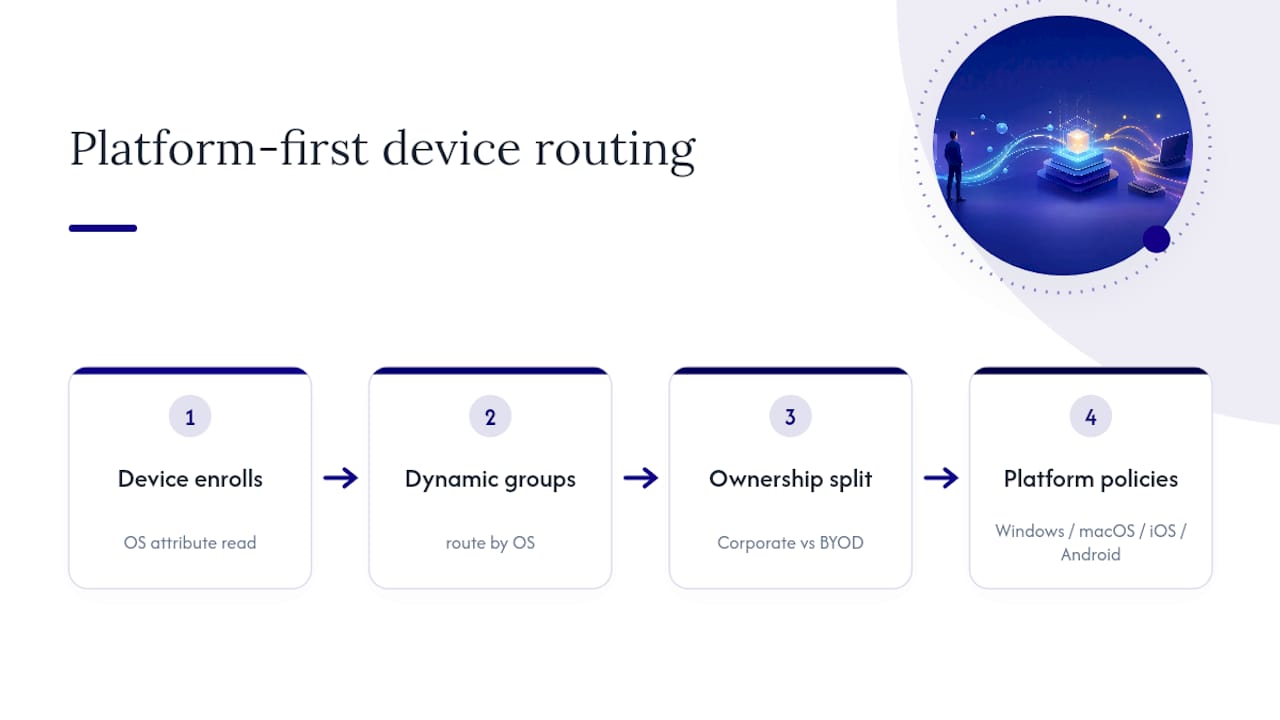
Coexistence gets harder around app protection. A Teams app protection policy on iOS behaves differently than the Android equivalent, particularly around biometric unlock requirements, so test each platform's MAM policy independently rather than assuming parity.
macOS deserves special attention for small businesses adding their first Mac users. Apple's configuration profile format differs enough from Windows that a policy built for one platform simply won't translate, and macOS enrollment through Apple Business Manager needs its own token separate from iOS devices.
The realistic goal isn't identical policies across every platform. It's equivalent security outcomes, encrypted disks, enforced passcodes, current patches, achieved through platform-appropriate settings.
Beyond Defender: Connecting Intune to the Rest of Your Stack
Microsoft Defender for Endpoint gets most of the attention in Intune integration discussions, but it's far from the only connection worth building.
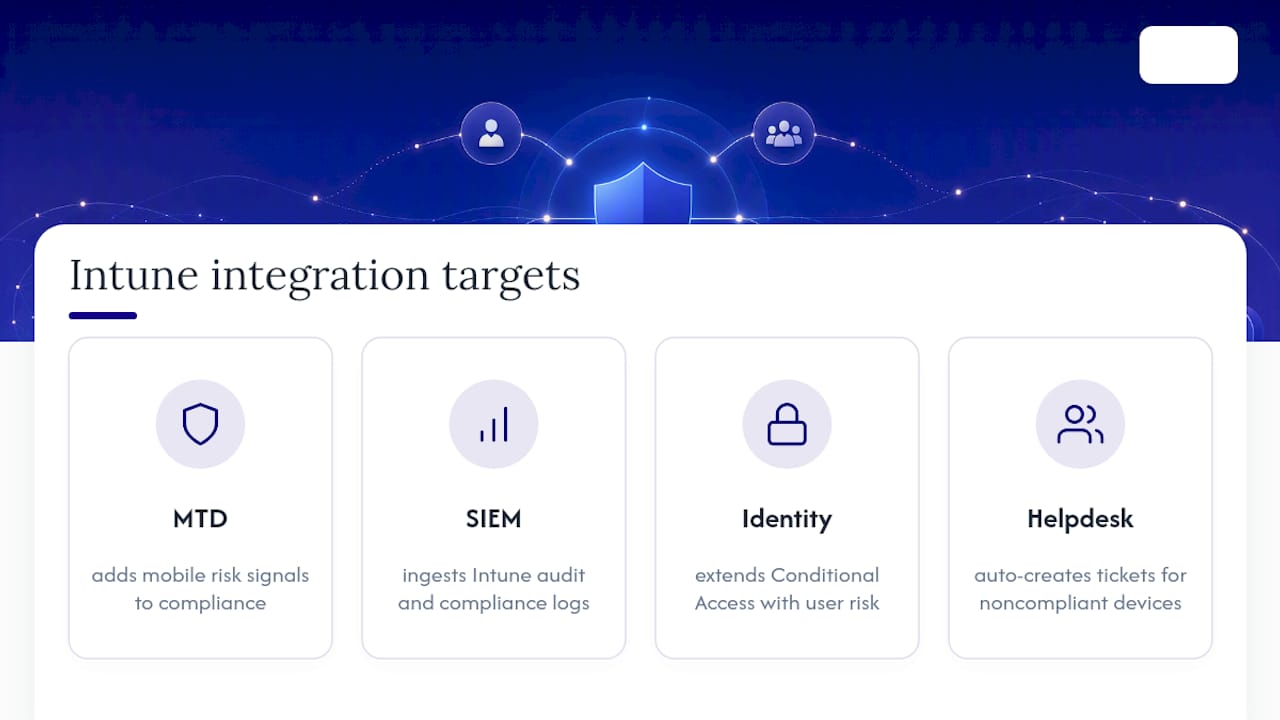
Mobile threat defense (MTD) partners integrate with Intune to feed additional risk signals into compliance policies, useful for organizations wanting deeper mobile-specific threat detection than Defender alone provides. SIEM platforms can ingest Intune's audit and compliance logs through Microsoft Graph API for centralized security monitoring alongside firewall and server logs.
Identity governance tools connected to Microsoft Entra extend Conditional Access decisions beyond device compliance into user risk scoring, location, and sign-in behavior. For regulated industries, this matters because a compliance auditor increasingly wants to see device posture and identity risk evaluated together, not as separate silos.
Ticketing and helpdesk platforms integrate with Intune notifications so a noncompliant device automatically generates a support ticket instead of relying on an admin noticing it in a dashboard. That single automation often closes the gap between "policy detected the problem" and "someone actually fixed it."
The integration point that trips up small IT teams most often is assuming every third-party tool "just works" with Intune out of the box. Most require a service principal registration in Entra ID and specific Graph API permissions scoped correctly, work that takes an afternoon but gets skipped when teams are moving fast during initial rollout.
Getting Employees to Actually Cooperate With Enrollment
The best-configured Intune tenant fails if employees resist enrollment, and resistance almost always traces back to unclear communication about what IT can see.
Address privacy concerns directly and early, especially for BYOD. Employees need to hear, in plain terms, that MAM-only enrollment doesn't give IT visibility into personal photos, texts, or browsing history, it only protects a defined set of work apps. That single clarification resolves most BYOD pushback before it starts.
Build short, role-specific documentation rather than one generic company-wide memo. A warehouse employee enrolling an Android tablet needs different instructions than an executive enrolling a personal iPhone for email access. Keep each guide under a page, with screenshots for the two or three steps that actually confuse people.
Stagger the rollout announcement to match the pilot plan. Announcing full enforcement to the entire company before the pilot group has even validated the policy creates confusion when things inevitably shift during testing. Change management works better as a quiet expansion than a company-wide launch event.
Train helpdesk staff on the most common self-service fixes before expanding past the pilot: certificate renewal prompts, Company Portal sync issues, and compliance status confusion cover the large majority of tickets. A helpdesk team that can resolve these without escalation keeps the rollout's momentum intact instead of stalling on ticket backlogs.
What Actually Matters Once You Cut Through the Noise
Most Intune guidance treats every feature as equally urgent, and that's the wrong instinct for a small IT team with limited hours. The compliance policy and Conditional Access pairing deserves more attention than app protection nuance, because a locked-out sales team on a Monday morning costs more goodwill than a slightly imperfect BYOD policy ever will.
The conventional advice to "enable everything the settings catalog offers" is backwards for a lean team. A tight baseline, encryption, firewall, a handful of ASR rules, enforced through report-only Conditional Access before going live, beats a sprawling policy set nobody has time to audit. Complexity you don't maintain is a liability, not a security posture.
If there's one place to spend disproportionate time, it's the pilot phase. Rushing past report-only mode to hit an arbitrary deployment deadline is the single most common cause of rollout failures I've seen described in Microsoft's own guidance and in small business case studies alike. A two-week delay to validate policies costs far less than an emergency rollback after locking out half the company.
Prioritize licensing and RBAC before anything else. Everything downstream depends on getting those two right the first time.
— Michael
Get Help Setting Up Intune Without the Trial and Error
Some managed IT services handle parts of an Intune rollout that consume substantial internal IT time, such as licensing verification, RBAC setup, compliance policy design, and the report-only testing phase, helping small businesses avoid extended periods of user lockouts and support tickets.
For manufacturing, aerospace, and professional services businesses facing audit requirements alongside device management, Symmnet builds compliance documentation into the deployment from day one rather than reconstructing it later under deadline pressure. That combination, managed IT and industry-specific compliance work under one contract, is what Symmnet's managed IT services are built around.
A discovery call with a managed IT provider typically covers your current device count and platform mix, a realistic timeline based on your fleet size, and pricing details to avoid surprise invoices during the project. Request a free security assessment to find out where your current setup has gaps before committing to a full deployment.
Sources
- Microsoft Intune core features | Microsoft Security
- Get started with Microsoft Intune (deployment guidance)